
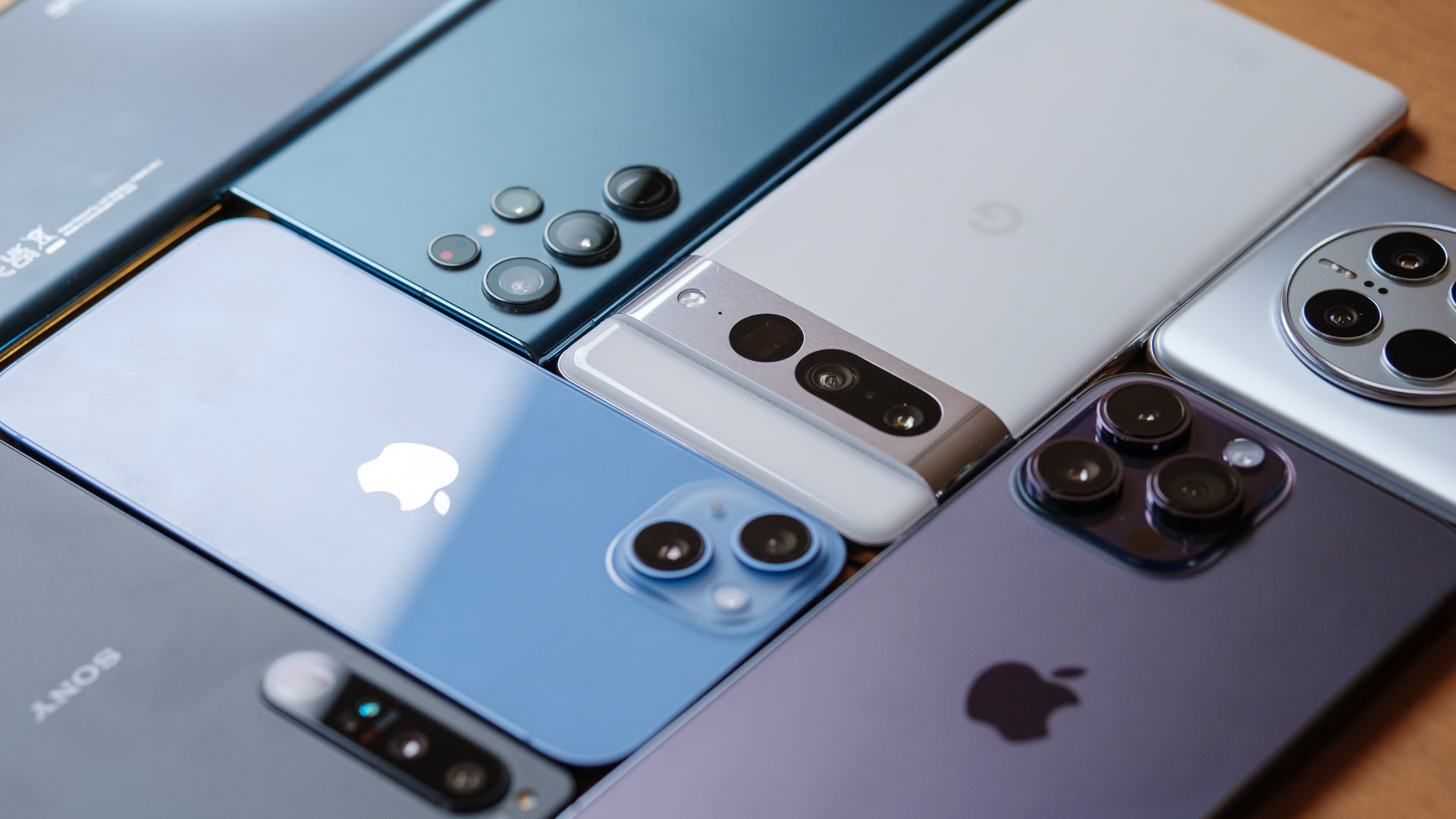
Your phone battery drops to twenty percent right when you need to call a ride home. It happens all the time, usually on long days when you are away from a wall plug. You can change a few quick settings today to stop your screen and apps from stealing your power.
The fastest way to save power is to lower your screen brightness, turn off location tracking for apps you do not use, and turn on dark mode. Taking these three steps can give you several extra hours of light use every day. You do not need to buy anything new or hide your phone in a drawer to get through the night.
Lower Your Screen Brightness and Use Dark Mode
Your screen takes more power than any other part of your device. Big displays look great, but they drain your charge quickly when they sit on full brightness. If you keep your display bright all afternoon, you will lose a huge chunk of your power before dinner time.
Turn on Auto-Brightness so your device changes its display light on its own. On an iPhone, open Settings, tap Accessibility, tap Display & Text Size, and switch on Auto-Brightness at the bottom. On an Android phone, swipe down from the top of your screen twice and turn on Adaptive brightness. This keeps your display dim when you sit in a dark room and bright only when you walk outside into the sun.
Dark mode also saves a lot of energy if your device has an OLED screen. These displays turn off individual display dots to show true black color, which uses zero power for those parts of the screen. Open Settings, tap Display & Brightness on iOS or Display on Android, and select Dark. My phone used to lose ten percent of its charge every morning just from reading news on a white screen. Switching to a dark background fixed that problem on the first day.
Set your screen to lock itself quickly when you put it down. Choose thirty seconds or one minute under your display menu. Leaving your display turned on while your phone sits on the desk drains power for no reason at all.
Stop Apps From Running in the Background
Apps like to work even when you are not looking at them. Social media programs, email tools, and games check for fresh updates every few seconds. They download files, check your spot on a map, and keep your main processor awake in your pocket.
You can turn off this quiet activity without missing important messages. On an iPhone, go to Settings, tap General, and select Background App Refresh. You can switch it off for the whole device or turn it off for apps like shopping programs and mobile games. On Android, go to Settings, tap Apps, tap the name of an app, select Battery, and tap Restricted.
It helps to know what is actually taking your power right now. Your device keeps a simple list of the biggest power users over the last day or week. Go to Settings and tap Battery to read the list. If a app you open once a week takes twenty percent of your daily power, delete it or block its background rights immediately.
Do not force close your apps all day long by swiping them away. People think closing apps saves energy, but opening an app from a fresh start takes more power than waking it from a quiet background state. Leave your main apps alone unless they freeze up completely.
Turn Off Location Tracking You Do Not Need
GPS microchips inside a modern Smartphone use a lot of energy to talk to sky satellites. Mapping apps need your location to show turn-by-turn directions while you drive. Store apps, camera apps, and weather games do not need to know where you walk every minute of the day.
Change your location rules so apps only see your spot while you use them. On an iPhone, open Settings, tap Privacy & Security, and select Location Services. Look down your app list and change permissions from Always to While Using the App. On Android, go to Settings, tap Location, select App permissions, and adjust your list there.
Turn off bluetooth and Wi-Fi searching when you leave your house for a long trip. Your device sends out signal pulses constantly to find open networks and wireless gear nearby. Pull down your quick control panel from the top of your screen and turn off Wi-Fi when you ride in a car or walk on a trail.
You can also check out our simple guide on How to Spot a Fake Website Before Giving Away Your Info to keep your personal data safe while browsing on public networks. Staying safe online is just as helpful as keeping your device powered up during long travel days.
How to Fix Quick Battery Drain on Old Phones?
Batteries get old over time. The chemical parts inside a phone degrade after two or three years of daily use and charging. A battery that held a charge for twelve hours when it was brand new might only last six hours today.
Check the health of your power cell directly in your device menu. On an iPhone, go to Settings, tap Battery, and select Battery Health & Charging. Look at the Maximum Capacity number. If that number drops below eighty percent, your phone will drain very fast and might shut off unexpectedly on cold days.
Android users can check battery health by opening Settings, tapping About phone, and looking for battery info, or by downloading a clean tool like AccuBattery. If your health number is low, paying a local repair shop to install a fresh power cell costs far less than buying a brand new device.
Extreme cold and high heat also harm power cells quickly. Never leave your device sitting on your car dashboard under direct sunlight on a summer day. Heat damages internal parts permanently, leaving you with a device that drains fast even after you cool it down in the shade.
Turn On Built-In Power Saving Modes
Every modern device comes with a built-in power saving mode. These tools lower screen light, pause background updates, and slow down the main computer brain just enough to save power. You will barely notice a speed difference when you send texts or read web pages.
On iOS, this is called Low Power Mode. You can turn it on by opening Settings, tapping Battery, and switching on Low Power Mode. The battery icon in the corner of your screen turns yellow so you know it is working. You can also add a simple shortcut button to your iOS Control Center to toggle it on with one touch.
On Android, open Settings, tap Battery, and turn on Battery Saver. Most Android devices let you schedule this mode so it turns on automatically when your charge drops to twenty percent. Some phones also offer an Extreme Battery Saver mode that turns off all apps except phone calls and text messages for emergencies.
Using these modes early in your day works far better than waiting until you reach five percent. If you know you will be away from a plug all day at an outdoor event, turn on power saving mode the moment you unplug your device in the morning. You can learn even more tech advice by checking out our main collection of easy phone troubleshooting guides.
Smart Charging Habits for Long Term Battery Health
How you charge your device matters just as much as how you use it. Plunging your phone from zero to one hundred percent every single night stresses the power cell. Keeping your charge level between twenty and eighty percent helps the internal parts last much longer.
Turn on smart charging settings that protect your hardware while you sleep. On an iPhone, go to Settings, tap Battery, tap Battery Health & Charging, and switch on Optimized Battery Charging. Your phone learns your daily routine and pauses charging past eighty percent until right before you wake up in the morning.
Android devices have a similar feature called Adaptive Charging or Protect Battery inside the Battery menu. This caps your total charge at eighty-five percent so the cell stays cool and stable overnight. Using slow charging cables overnight is also safer than using high-power fast chargers that heat up your device while you sleep.
Avoid playing heavy graphic games or streaming video while your phone stays plugged into the wall. Doing heavy work while taking power makes the internal hardware heat up fast. High heat during a charge is the single fastest way to destroy battery capacity over a few months.
Try making just two of these small changes today. Turn on dark mode and switch your screen time-out to thirty seconds right now. Your battery will last through the evening, and you will not have to search for a wall outlet while you are out with friends.